Chat and actions
Start a chat, see what the Assistant can look up and do, how confirmation works before long jobs, and what a message costs.
The chat is where you work with the Assistant. Each project has its own chats, and the Assistant only sees the project you have open.
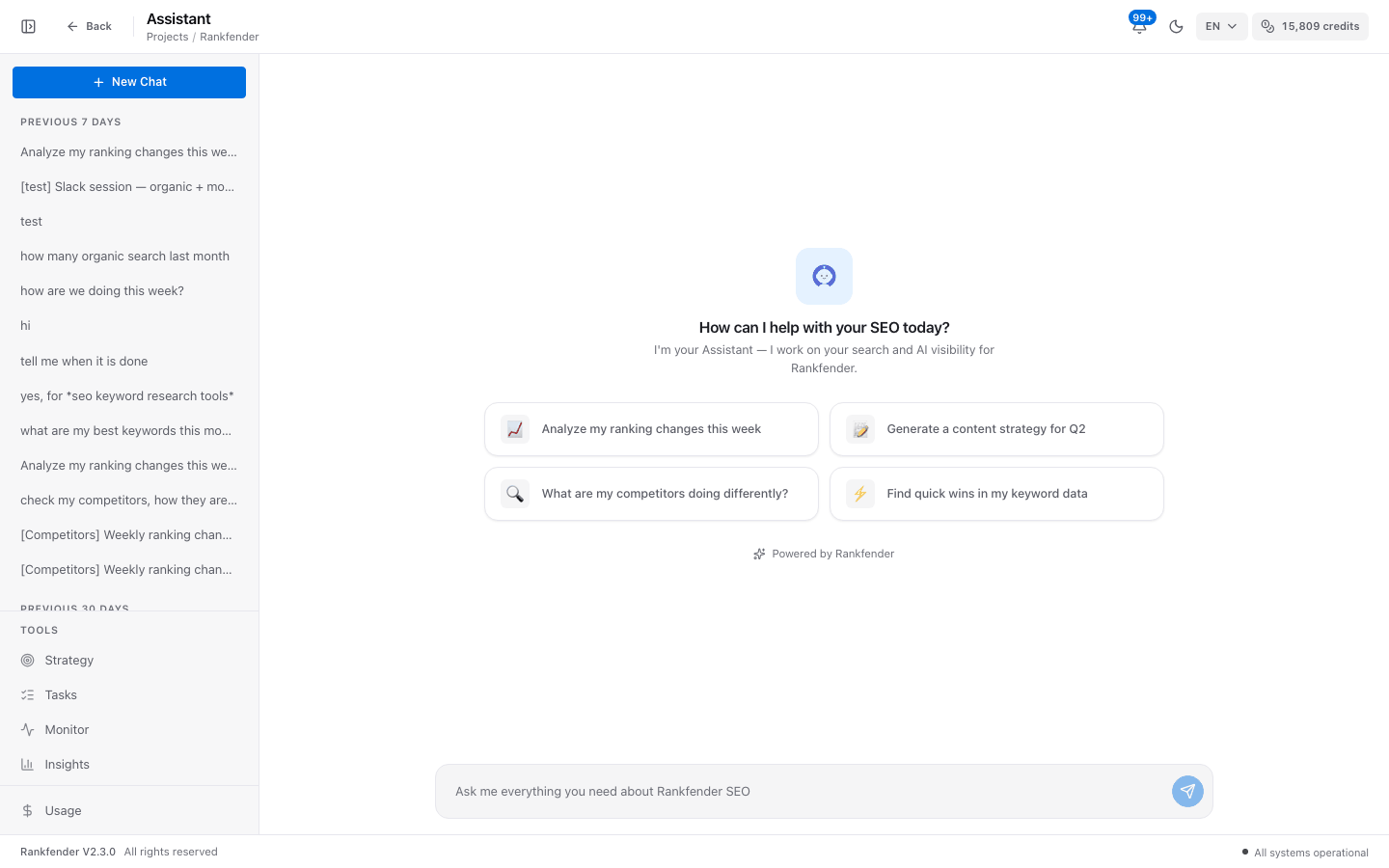
Start a chat
Click "New Chat"
An empty chat shows four suggestions, such as "Analyze my ranking changes this week". Click one, or write your own question.
Type and press Enter
The box reads "Ask me everything you need about [project] SEO". Shift + Enter does not send.
Watch it work
Lines such as "Reading your organic search data..." show each lookup. The answer then appears word by word.
Past chats are listed by date: Today, Yesterday, Previous 7 days, Previous 30 days, Older. Hover a chat to rename or delete it.
What you can ask
| Group | Example | What happens |
|---|---|---|
| Look up data | "How are we doing this week?" | Reads organic search, Google (if connected), AI visibility, competitors, backlinks, the site audit, credits, opportunities and alerts. |
| Read a page | "Check our pricing page" | Reads the live page: title, meta description, headings, word count, schema, image alt text. Works on competitor pages too. |
| Keywords | "Replace 2024 with 2026 in my keywords" | Searches, adds, renames or deletes tracked keywords. |
| Content | "Plan 3 articles for these keywords" | Adds ideas with an outline to the calendar (at most 2 a day), moves or unschedules them, or starts writing an article (3 to 5 minutes). |
| Checks | "Refresh my AI visibility" | Starts an AI check (5 to 15 minutes) or a site audit (Professional and up). |
| Fixes to paste | "Can AI crawlers see my site?" | Writes schema JSON-LD or an FAQ block, an llms.txt file, or reviews robots.txt and proposes a version that lets AI crawlers in. You paste it yourself. |
| Planning | "Mark the schema task as done" | Lists tasks from Planning and the Assistant's Tasks, changes a status, adds a topic, turns an AI visibility gap into a brief on Planning, builds the weekly strategy. |
| Reports and email | "Give me a report link for the last 30 days" | Builds a report with a public share link, or emails a snapshot or a piece of content to your own account address. |
| Memory | "Remember: never suggest TikTok content" | Keeps the fact for future chats in this project. |
| Support | "This chart looks broken" | Opens a support ticket or a feature request when it cannot help. |
Confirmation before long jobs
Writing an article, running a site audit and running an AI check take minutes and use credits, so the Assistant always asks first: "This needs your confirmation: Write an article for "…". Reply "yes" to go ahead, or "no" to cancel." Nothing starts until you reply.
- Reply with one short word or phrase: "yes", "ok", "go ahead", or "no", "cancel". French words ("oui", "non") work too.
- The request waits 15 minutes. After that, ask again.
- "no" answers "Cancelled — no action taken."
Small edits you ask for in so many words (add, rename or delete keywords, schedule or move an idea, add a topic, change a task's status, write a fix) are made right away. The answer says what changed. To review first, ask the Assistant to propose the change without doing it.
Suggested actions
After an answer, up to three cards can appear with a button. Nothing happens until you click it; then it reads "Applied ✓".
| Button | What it does |
|---|---|
| "Create Article" | Adds an article idea to Content and opens it. |
| "Track N Keywords" | Adds the keywords to your list. |
| "Go to Strategy" | Opens the Strategy page to review a change. |
| "Add to Planning" | Adds a task to the Planning backlog. |
| "Run RAIVE" | Starts an AI visibility check. |
| "Track Competitor" | Adds the site to your competitors. |
| "Create All (N)" | Adds several article ideas at once. |
What a message costs
Each message uses credits from your monthly allowance, usually a few. A job you confirm uses that job's own credits, for example 30 for an article and 25 for an AI check. When no credits are left, the message box is replaced by "You're out of RAISA credits.": top up from the credits chip in the top bar. See Monthly credits.
Tip
Name the page, keyword or period you mean ("our /pricing page", "the last 28 days"). The more precise the question, the fewer lookups it needs.