Image Generation
Featured and inline images: style, brand colours, resolution, logo overlay, making a new image, and how images reach your site.
Every article gets a featured image right after it is saved: the stage "Generating featured image" in the Writer. How it looks is set in Content › Settings › "Image & Visuals" and applies to every new image of the project.
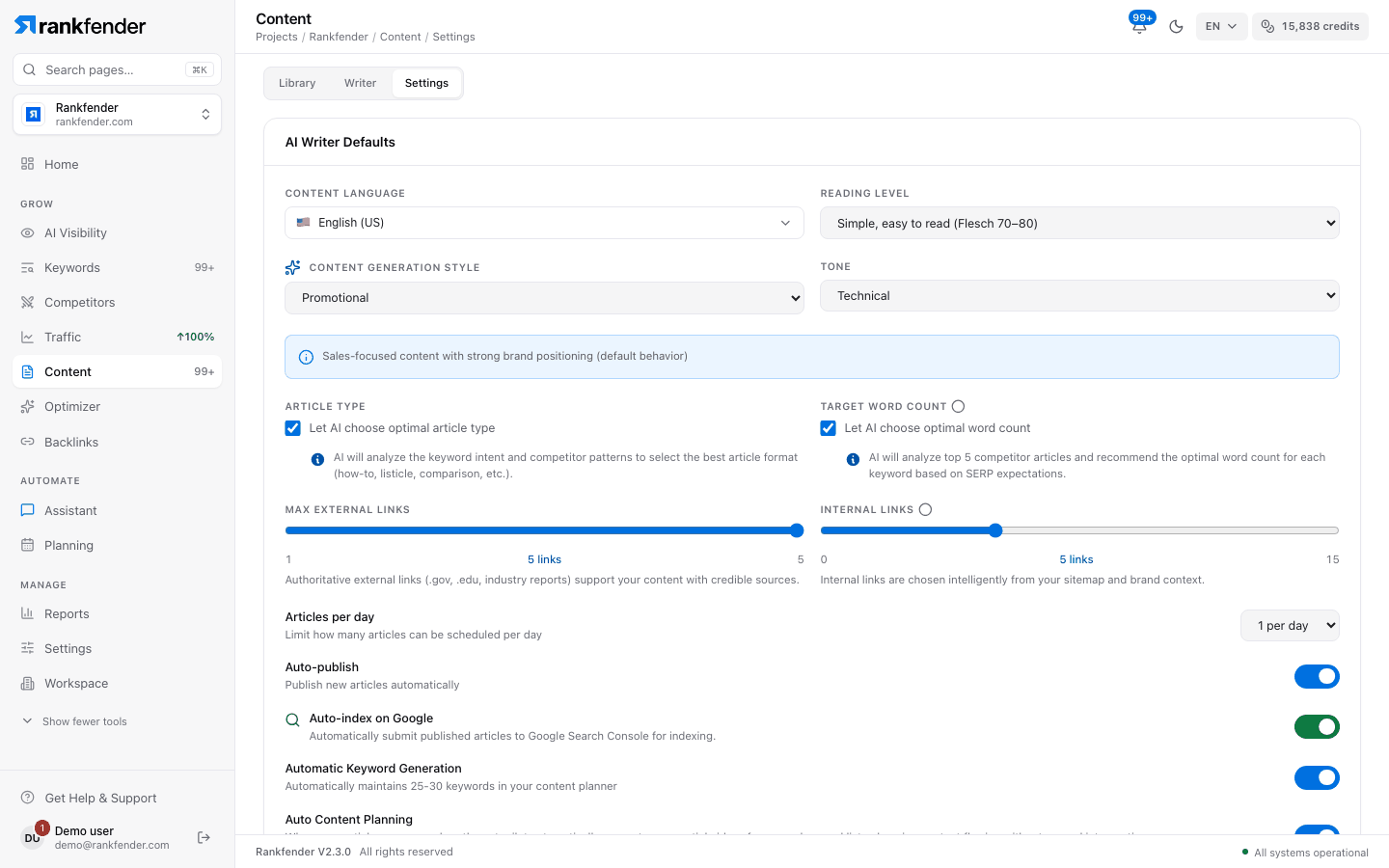
Image settings
| Setting | Options |
|---|---|
| Image Style | Corporate, Watercolor, Cinematic, Illustration or Sketch. |
| Brand Colors Enforcement | Off (natural scene colours), Subtle, Balanced (Recommended) or Dominant. The colours come from your Brand Book's visual identity. |
| Resolution | 1024 × 576 (blog banner, 16:9), 1024 × 1024 (square), 1200 × 628 (social OG card), 1408 × 768 (wide landscape), 1920 × 1080 (Full HD) or 768 × 1024 (portrait, 3:4). |
| Title-Based Featured Image | Puts the article title into the image prompt, for a cover that matches the topic. |
| Brand Logo Overlay | BETA. Places your Brand Book logo on every featured image, at Top Left, Top Right, Bottom Left or Bottom Right. |
| Inline Images Professional and up | Adds images inside the article body: 1, 2 or 3, or "Let AI choose" (currently one image). On Essential the switch shows "Available on Pro and above". |
"YouTube Video" and "Call-to-Action" are listed as "Coming soon".
Make a new image
- In the Library, the image icon on a draft reads Generate Image (no image yet) or Regenerate Image.
- In the Writer, the image in the preview has a regenerate button.
A new image uses the settings in force at that moment, so change the style first, then regenerate.
Images and publishing
- Publish stays disabled until the article has a featured image; while one is being made, publishing waits ("Image generation in progress").
- The WordPress plugin downloads the featured image into your media library and sets it as the post's featured image. Inline images are copied into the media library too (a plugin option, on by default).
- The Modern Web webhook sends the image URL in
featured_image.
Note
If the image fails, the article is still saved as a draft. Make the image from the Library, then publish. See Publishing and autopilot.