Audit
Read your Site Health score, what changed since the last audit, foundation files and markup, every check and AI readiness.
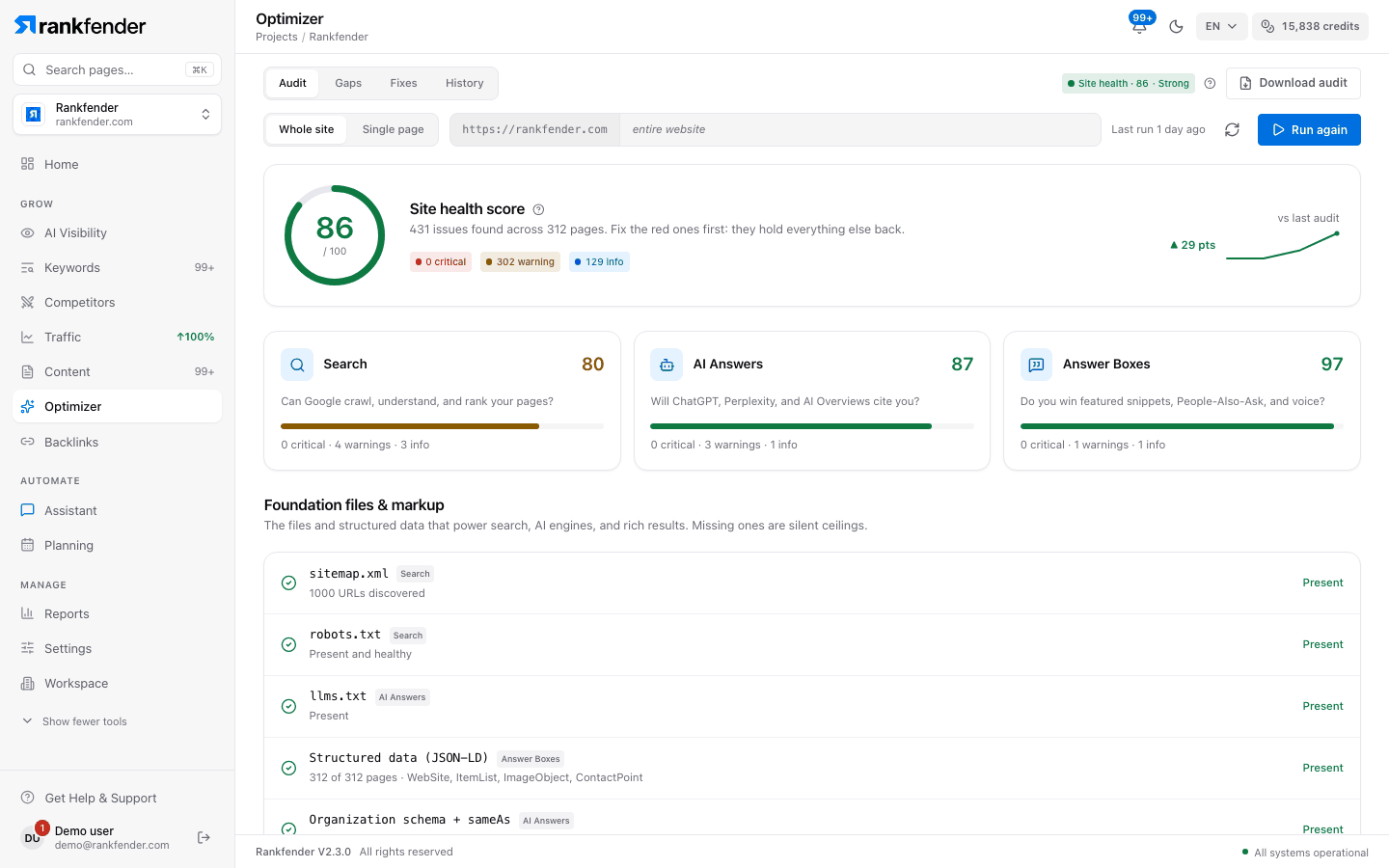
The Audit tab runs the site audit and shows its result: the Site Health score, what changed since your last audit, the files every site needs, every check grouped by pillar, and AI readiness.
Run an audit
Choose "Whole site" or "Single page"
The bar under the tabs shows your site address. "Whole site" reads the entire website up to your plan's page limit. "Single page" checks one page: type its path after the address, for example /pricing.
Click "Run site audit"
After the first audit the button reads "Run again". The round-arrow icon ("Run the audit again") starts a fresh audit too; "Last run …" says when the one on screen ran.
Watch it fill in
Results appear after the first pages and grow as the audit goes on: "Reading your pages…", "… pages checked so far — continuing…", then "… pages checked — now checking links across the whole site…". Stay on the page while it runs.
A small site takes about 3 minutes. Pages are read a few at a time, so a large site takes longer. If the site asks us to slow down, the audit pauses and continues: "The site asked us to slow down — pausing, then continuing".
What the audit reads
- Which pages: the pages in your sitemap and the pages your homepage links to, then the internal links found on them, up to your plan's limit (10, 50 or 500 pages).
- How: the HTML your server sends for each page. The audit does not run JavaScript, so text or links that scripts add after loading are not seen.
- Site files: robots.txt, the XML sitemap and llms.txt at your domain root.
- Broken entries: sitemap addresses that return an error, redirect or are not web pages are reported, not audited as pages.
- Speed: Core Web Vitals from real Chrome visitors, only for sites connected to Google Search Console with enough visitors to be measured.
- Pages left alone: legal and utility pages (privacy, login, cart…) are not flagged for noindex or missing structured data, which they often lack on purpose.
The score card
"Site health score" (or "This page's score" for a single page) with a ring out of 100, a line such as "12 issues found across 48 pages. Fix the red ones first: they hold everything else back.", counters for critical, warning and info, and a small trend of your past scores. The header shows the same score as "Site health · 72" with "Strong", "Needs work" or "At risk". How the number is built: Site Health overview.
Under it, "Since your audit of …" sums up what changed since the previous whole-site audit. See History.
The three pillar cards
"Search", "AI Answers" and "Answer Boxes", each with its own score and "N critical · N warnings · N info". Click a card to list every issue of that pillar, with the same details as "Every check".
Foundation files & markup
The files and markup search engines and AI assistants look for first. Each row shows "Present", "Partial", "Missing" or "Not checked":
| Row | Pillar badge | Present when |
|---|---|---|
| sitemap.xml | Search | A sitemap was found; the row shows how many URLs it lists. |
| robots.txt | Search | It exists and doesn't block the site. "Partial" if it blocks AI crawlers or has no Sitemap line. |
| llms.txt | AI Answers | The file exists at your domain root. |
| Structured data (JSON-LD) | Answer Boxes | Schema is on at least 9 pages out of 10; the row lists the main types found. |
| Organization schema + sameAs | AI Answers | Your homepage has Organization schema with sameAs links to your official profiles. |
| Canonical tag | Search | Every audited page has a canonical pointing to itself. |
| Open Graph tags | Search | og:title, og:description, og:url and og:image are all there. |
| FAQPage schema | Answer Boxes | Your FAQ content is marked up with FAQPage. |
A single-page audit shows "Not checked" for sitemap.xml, robots.txt and llms.txt: those need a whole-site audit.
Every check
Every issue the audit found, grouped by pillar and sorted from "Critical" to "Info". One row per issue, with "N pages" when it affects several. Click a row to open "Why it matters", "How to fix" (often numbered steps) and, when useful, an "Example" with a "Copy" button. "Affects N pages" lists the pages; "Show all N pages" opens the full list. What each check means: Every check explained.
AI readiness
Below the audit, "AI readiness" rates how easily AI assistants can find, read and quote your site on six dimensions: Crawler Access, Schema, Citability, Technical SEO, Authority and Brand Presence. It is a separate check: click "Check AI readiness" (about a minute). It does not change the Site Health score.
Download the audit
Once an audit is on screen, "Download audit" in the header opens "Full audit — everything to do":
- the project, the score and the number of actions,
- the foundation files that are missing or partial,
- every action grouped by pillar, each with how to fix it.
"Download PDF" saves the report (audit-yoursite-date.pdf), including what changed since the previous audit. "Add all to Planning (N)" adds every action not already in your tasks, spread over the coming days with at most 2 items a day.
When something goes wrong
| Message | What to do |
|---|---|
| "The site was too heavy to check in one go…" | Try "Single page", or run it again: large sites can take a couple of attempts. |
| "The audit stopped after N pages…" | The results so far are kept. Run it again to check more. |
| "The site refused N pages because we were visiting too fast…" | Those pages were not audited. Run the audit again later to include them. |
| "We couldn't read any page of the site." | Check that the site is online and does not block visitors by country or firewall. |
| "Your last site audit scored N/100" | The details of that audit are not on this screen. "Run the audit again" to see each issue. |
Tip
Running a single-page audit never changes the Site Health score on Home: use it to check one page after you fix it.