Navigating the app
The sidebar groups, the reduced menu for new accounts, page search (⌘K), the top bar, the account menu, credits and What's new.
The sidebar
The sidebar lists the pages of the current project: Home, then three groups.
| Group | Pages |
|---|---|
| — | Home |
| Grow | AI Visibility, Keywords, Competitors, Traffic, Content, Optimizer, Backlinks |
| Automate | Assistant, Planning |
| Manage | Reports, Settings, Workspace (Team, Projects) |
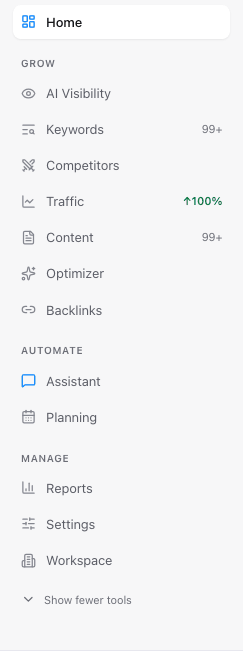
The sidebar also holds the project switcher, which shows your role in each project (Admin, Editor or Viewer), and a setup indicator while a new project is being set up, for example "4 of 6 ready", or "Needs a look" when a step is slow or stopped.
Most pages have tabs at the top, for example Keywords: Opportunities, Rankings and Explorer.
A shorter menu for new accounts
For the first 14 days after you sign up, the sidebar shows the essentials: Home, AI Visibility, Keywords, Content, Planning and Settings. "Show all tools (+N)" shows everything and "Show fewer tools" goes back. Your choice is remembered, and the page you are on always stays visible.
Page search (⌘K)
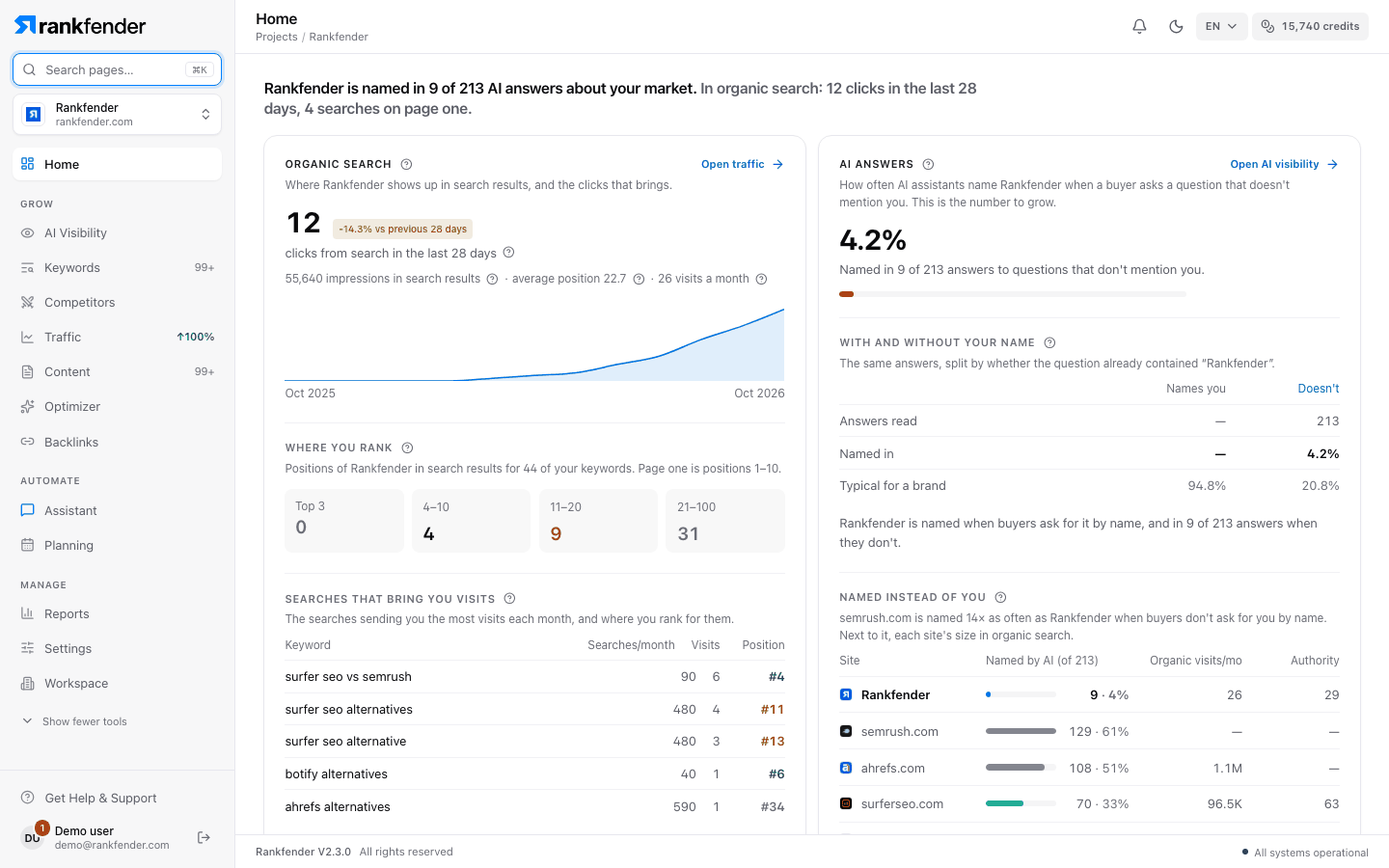
Press ⌘K on a Mac or Ctrl+K on Windows, or click the search field, then type: "Search pages…" finds any page or tab of the project.
The top bar
| Item | What it shows |
|---|---|
| Generation jobs | Articles and other work being generated right now. |
| Sync status | Whether your data is up to date. |
| "Activity Center" | Recent events on your projects, with "Mark all as read". It also opens as a full page. |
| Light / dark | Switches the theme. |
| Credits chip | Your credit balance (see below). |
The credits chip
Click it to see "This month's plan credits" (for example "1,200 of 2,000 used"), any "Extra credits" you bought, the renewal date and "Top up". Credits pay for AI checks, content, keyword, competitor, backlink and traffic data, images and the Assistant. Data already fetched is free to view again.
Important
"Out of credits": new AI checks, content and data wait until you top up or your credits renew. Everything already saved stays visible.
The account menu
| Item | Opens |
|---|---|
| "Account Settings" | Your profile and security. Two-factor sign-in is coming soon. |
| "Billing & Plans" | Plan, payment history and receipts: Billing and receipts. |
| "Usage" | Usage bars against your plan limits: Plan limits. |
| "Team" | Members and invitations: Team members. |
| "API Keys" | Coming soon. The content API key lives in Settings › Integrations › Modern Web: API. |
| "Language" | English, French, Spanish, German, Italian, Portuguese or Dutch. |
| "Replay platform tour" | The guided tour of the app. |
| "Get Help & Support" | Help, feature requests and your tickets: Contact support. |
| "What's new" | The highlights of the current version. |
| "Logout" | Signs you out. |
What's new and new versions
"What's new" (in the account menu, or "Rankfender V2.3.0" at the bottom of the page) shows the 6 highlights of 2.3, with "Take the 1-minute tour" and "See all changes". When a newer version is published while you work, a bar says "A new version of Rankfender is available" with "Refresh now".
Computer only
Rankfender works in a desktop browser (Chrome, Safari, Edge or Firefox). On a phone it shows "Desktop Browser Required" with "Copy desktop link" and "Send link by email".