Visual Identity
Add your logo with Auto-Detect, a file or a URL, extract or pick your primary brand color, and read your color palette.
"Visual Identity" is the right column of the Brand Book. It holds your logo and your brand colors. The logo shows next to your project's name in Rankfender; the primary color is used for the images generated for your articles.
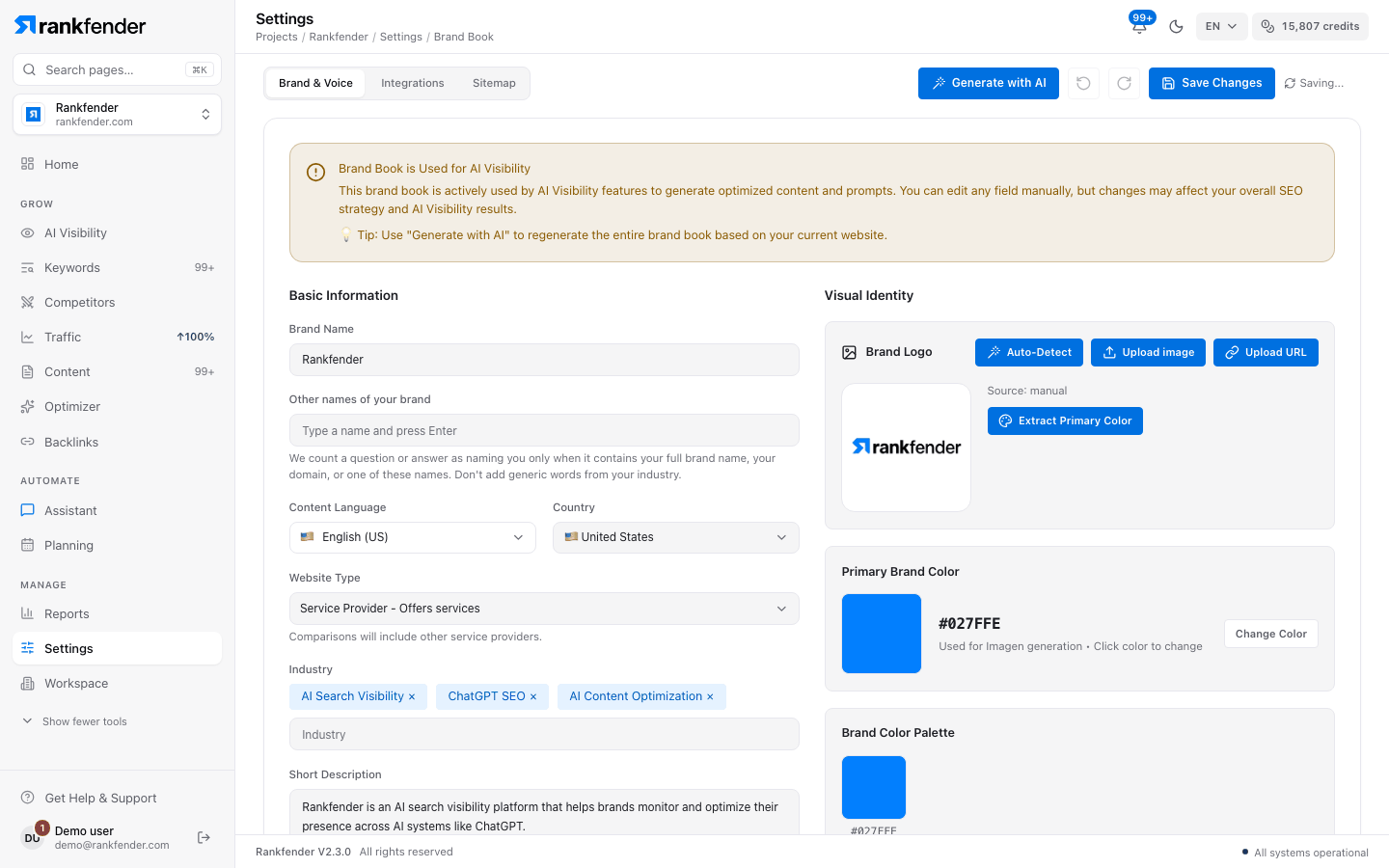
Brand Logo
| Button | What it does |
|---|---|
| "Auto-Detect" | Finds the logo on your website. |
| "Upload image" | Takes an image file from your computer. |
| "Upload URL" | Takes a link to an image, such as https://example.com/logo.png. Paste it and click "Upload". |
"Source:" under the logo says where it came from, for example "Source: manual". With no logo, the box reads "No logo uploaded yet".
Primary Brand Color
- "Extract Primary Color" reads the colors of your logo: it sets the primary color and fills the palette. Add a logo first, or you get "Please upload a logo first".
- To choose it yourself, click the color square or "Change Color", pick a color, then "Apply" or "Cancel". With no color yet, the button reads "Set Primary Color Manually".
- The line under the color, "Used for Imagen generation • Click color to change", means generated article images use it.
Brand Color Palette
The palette shows your other brand colors once they exist. "Extract Primary Color" and "Generate with AI" fill it. To change one color, set the primary color again.
Images for articles: Image Generation.