Questions
The buyer questions Rankfender asks AI assistants: how they are written, how to add your own, the Names you tag, pausing and plan limits.
The "Questions" tab holds the buyer questions that Rankfender asks AI assistants for your project. The switch "What we track" at the top shows "Questions", "Topics" or "Buyer types". This page covers the questions; Topics and buyer types covers the other two.
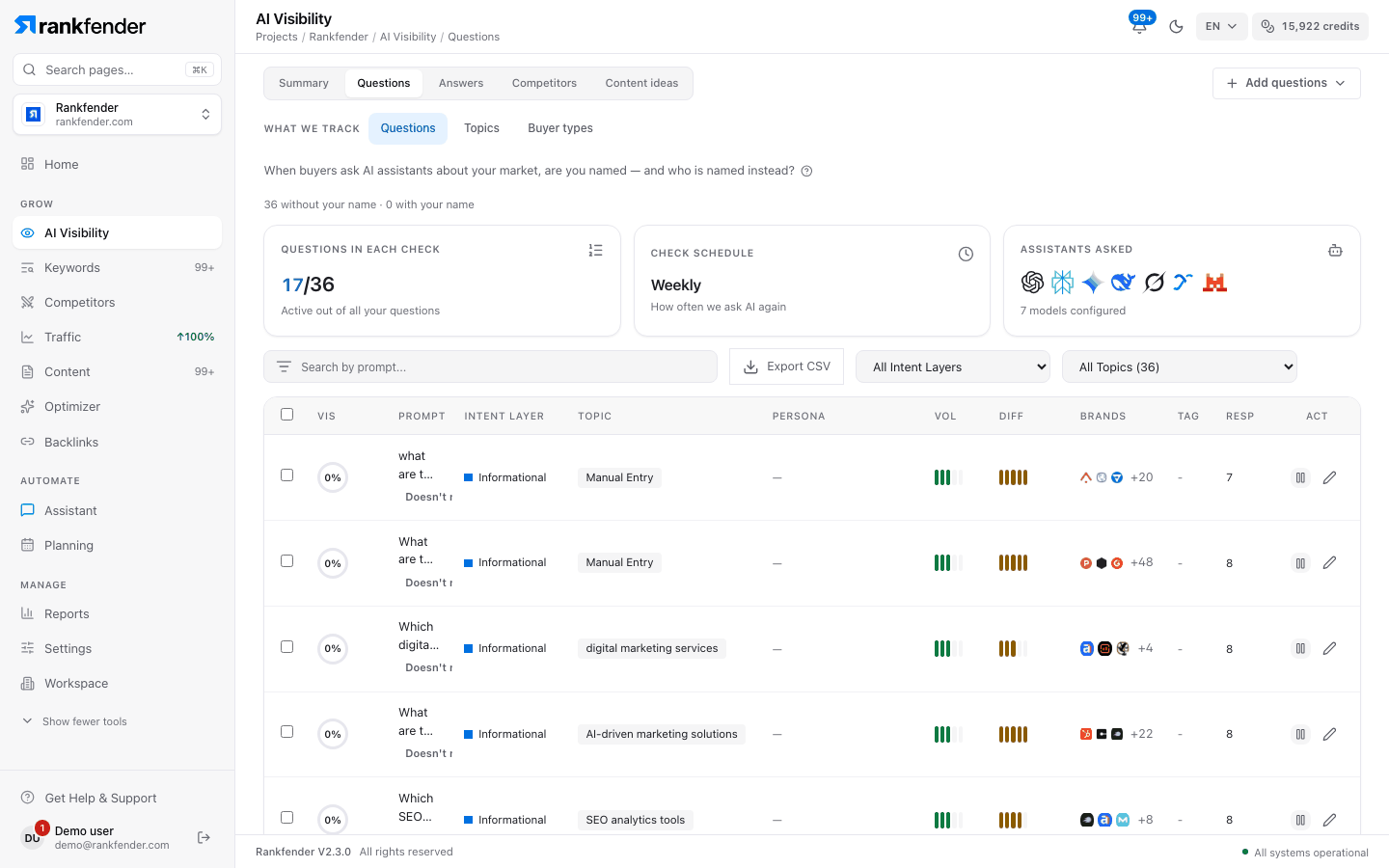
The three cards at the top
- "Questions in each check": active questions out of all your questions. Each plan has a ceiling (15, 30, 80 or unlimited); when you have more active questions, the extra ones are paused automatically.
- "Check schedule": how often AI is asked again, for example "Weekly".
- "Assistants asked": the assistants selected for the project.
Click any of the three cards to open "Monitoring Settings": see Running AI checks. Above the cards, a line such as "24 without your name · 6 with your name" says how many questions can count toward your score.
The question list
| Column | What it shows |
|---|---|
| Ring | The share of this question's answers that name you, counted on questions without your name. A question tagged "Names you" shows 0 here; hover its tag to read its own rate. |
| "Prompt" | The question, its "Names you" or "Doesn't name you" tag, and "PAUSED" when it is paused. |
| "Intent Layer" | Informational, comparative, branded, transactional or semantic expansion. |
| "Topic" and "PERSONA" | The topic and the buyer type the question belongs to. |
| "VOL" and "DIFF" | Internal estimates, not search data. VOL grows with the number of answers collected; DIFF grows when answers name many brands and rarely you. |
| "Brands" | Brands seen in the answers to this question. |
| "RESP" | Number of stored answers. |
| "ACT" | Pause or resume, and edit. |
Filter with "Search by prompt...", "All Intent Layers" and "All Topics". "Export CSV" downloads the list. Tick questions, then "Delete … Selected" removes them. Click a question to open its detail view with its answers.
The "Names you" tag
Rankfender tags a question "Names you" when it contains your brand name, domain or one of your other names. "Questions that name you are kept out of the score, because AI almost always names you there." If the tag is wrong, click it: your choice wins over the automatic tag, and every score updates right away, on this page and on Home.
Add questions
Click "Add questions"
The button sits at the top right of the Questions view.
Pick a way
"Suggest questions for me" and "Add my own" are on top; "More ways" opens the other options (table below).
Run a check
New questions are answered at the next check. To see results now, use "Run AI check" on the Summary or Answers tab.
| Option | What it does |
|---|---|
| "Suggest questions for me" | Writes up to 30 buyer questions from your topics and buyer types, in your project's language. Each has 4 to 35 words, near-duplicates are dropped, a year appears only if it is the current year, and at most about 15 % name your brand. On a new project it takes about 2 minutes; you can leave the page. |
| "Add my own" | Opens "Create New Prompt": "Prompt Text", "Intent Type" and "Topic (optional)", then "Create Prompt". The window reminds you not to use your brand name. |
| "Paste a list" | Opens "Batch Upload Prompts": one question per line, one intent type for all of them. |
| "Turn keywords into questions" | Opens "Generate from Keywords": one keyword per line, 1 to 3 questions per keyword from three fixed English patterns: "What are the best …?", "Compare … options", "How to choose …?". |
| "Write a larger set with AI" | Writes another set of about 30 questions from your Brand Book and topics and adds them to the ones you have. |
| "Replace all questions" | Deletes every current question and writes a new set. Answers to the deleted questions no longer appear. |
Tip
A good question is one a buyer would really type: no brand name, a concrete need, and some context such as budget, use or place. "Best invoicing app for a 3-person agency" tells you more than "invoicing software".
Pause, edit and delete
- Pause a question to free a place in the next check. Resuming is blocked while you are at your plan's ceiling ("Plan limit reached").
- Edit opens "Edit Prompt": text, persona, topic and tags.
- Delete: tick the questions, then "Delete … Selected" and confirm.