Task board
Add tasks, move them from To do to Done, filter by type and person, and open a task to see why it matters and how to do it.
The board holds every task of the project in four columns. It answers "What am I working on this month?": drag a card from one column to the next as the work moves, and open it to see why it matters and how to do it.
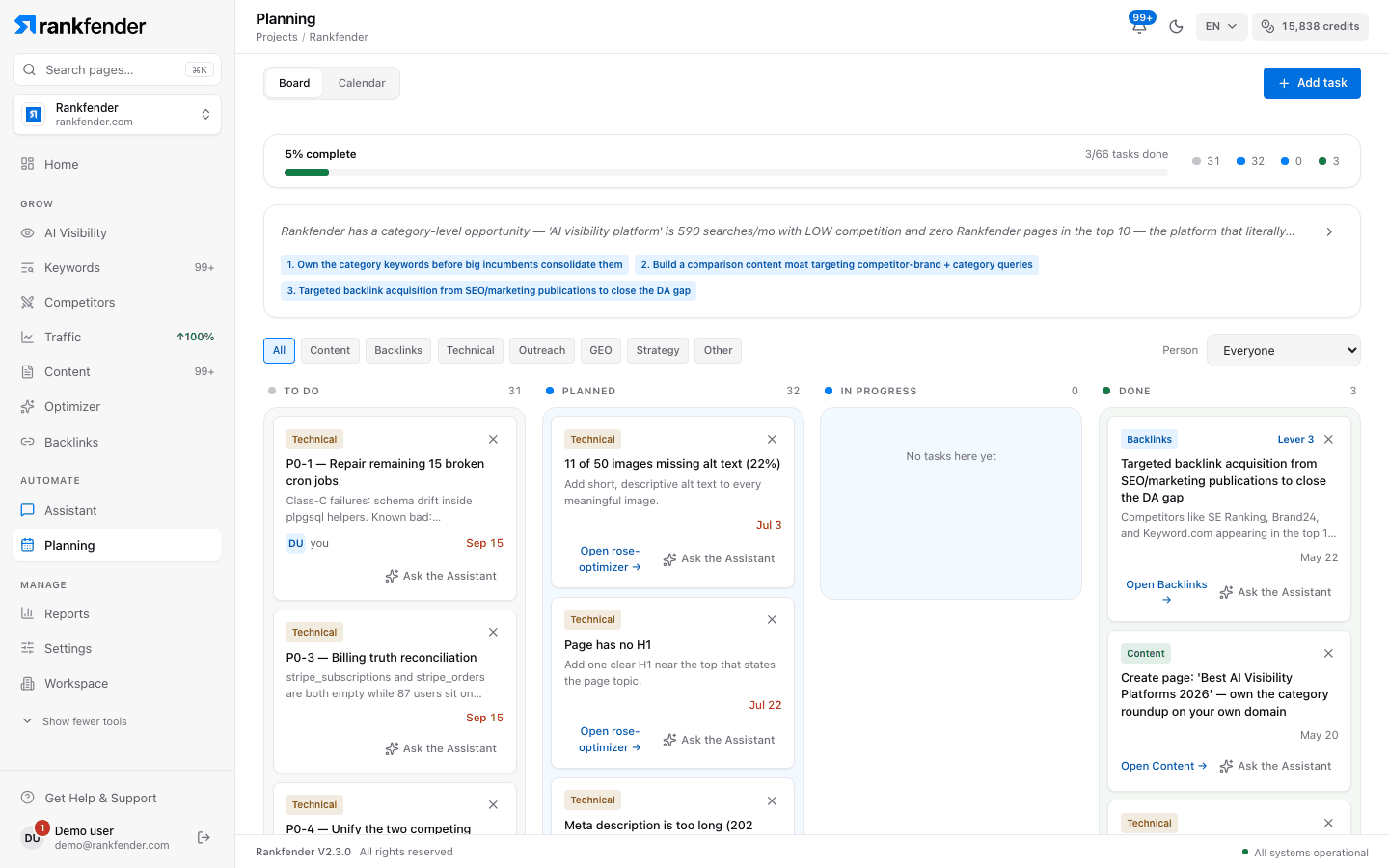
The four columns
| Column | What it means |
|---|---|
| "To do" | New tasks you haven't scheduled. Tasks you add yourself start here. |
| "Planned" | Scheduled work. A task moved here without a date gets the next day with room on the calendar (a day holds two items, articles and tasks together). |
| "In progress" | Someone is on it. The count also shows as "N in flight" in the progress strip. |
| "Done" | Finished. Fixes from the site audit also land here by themselves once a new audit finds them fixed. |
Drag a card to another column, or up and down to change the order. The × on a card deletes the task. Above the columns, the progress strip shows "N% complete", "done/total tasks done" and the count in each column.
Filters
- Type: "All", or one or more of "Content", "Backlinks", "Technical", "Outreach", "GEO", "Strategy" and "Other".
- "Person": appears once tasks can go to someone. "Everyone", "Assigned to me", "Not assigned", each member, and the addresses of people who got a task "By email".
What a card shows
The type, "Lever N" when the task comes from one of your strategy's three levers, the title and details, who has it ("Assigned to …" or "Sent by email to …") and the due date, in red once it has passed. The bottom line links to the tool the task belongs to and has "Ask the Assistant", which opens the Assistant with the task already written in.
Add a task
"Add task" opens a short form:
| Field | What to enter |
|---|---|
| "Title" * | What needs to be done. Required. |
| "Details" | Optional details. |
| "Type" | One of the seven types. "Other" by default. |
| "Due date" | Optional. A dated task also appears on the calendar. |
| "Assign to" | "Nobody yet", a member, or "Someone else, by email…" Professional and up |
Below Professional, the last field is replaced by "Assigning tasks to people is part of the Pro, Business and Agencies plans." and a "See plans" link.
The task window
Click a card to open it. The first time anyone opens a task, Rankfender writes its explanation with AI and keeps it with the task:
- "Why it matters": the reason in one or two sentences.
- "How to do it": numbered steps.
- "What to expect" and "Time needed".
Below, a button opens the right tool, for example "Add to Content Planning" (puts the topic on the calendar as an article idea), "Research this Keyword" or "Check AI Visibility". Then come "Assigned to" and the task's "History". At the bottom: "Assign", "Ask the Assistant" and "Mark as done".
Note
In the task window opened from the board, "Ask the Assistant" is greyed out for now. Use the "Ask the Assistant" link on the card instead.
To give the task to someone, see Assigning tasks and guests.