Keyword Opportunities
How Rankfender picks up to 30 searches from your site, the keyword table and panel, targeting a keyword, Generate and Refresh.
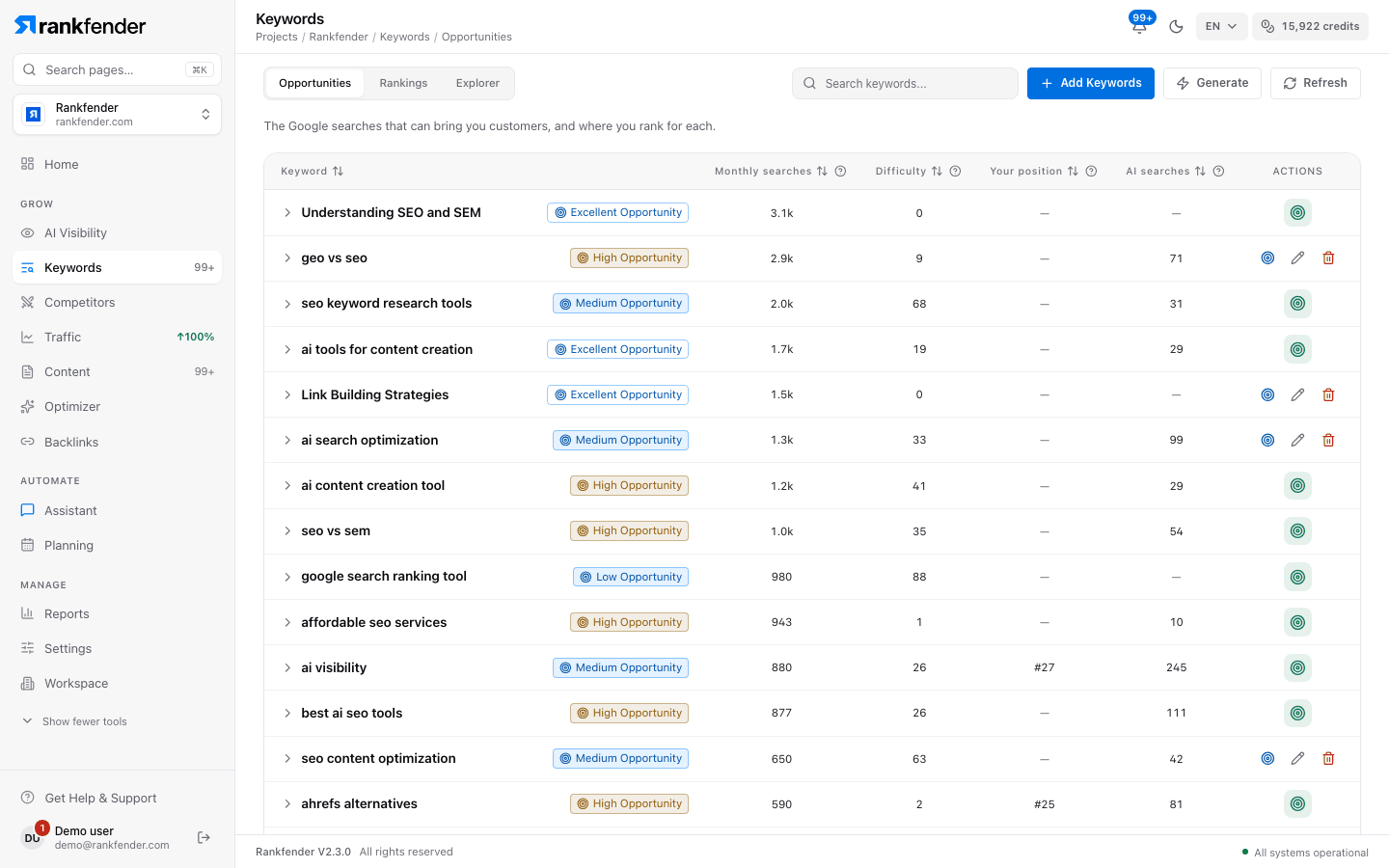
Opportunities is your project's keyword list. Each row is one Google search with its numbers. The list is sorted by monthly searches; click a column title to sort by it, or type in "Search keywords..." to filter.
How Rankfender picks your keywords
At setup and each time you press Generate, one run does five things:
Read
Your homepage and up to 14 key pages (menu links and sitemap): titles, descriptions and headings, to learn what you sell.Propose
An AI writes the searches a buyer who doesn't know your brand yet would type, each tied to one of your offers.Measure
Real Google numbers for your project's country and language: monthly searches, difficulty, intent and cost per click. Related real searches, and searches where you already rank 4–30, join the pool.Judge
A second AI pass checks each search against your offers and drops the unrelated ones: other meanings, competitor brands, jobs, downloads.Pick
The best searches are kept, up to 30.
How "best" is decided:
- The score weighs relevance to your offers, demand (monthly searches), ease (100 minus difficulty) and intent. Buying intent counts most.
- Searches where you already rank 4–30 get a bonus; the closer to page one, the bigger.
- Two phrasings of one search count once ("marketplace examples" and "example of marketplace").
- At most 3 searches contain your brand name, and the list is spread across your offers.
- Searches with no measured demand fill at most a third of the list.
- Searches stamped with a past year, or in another language than your project, are dropped.
While it runs, the "Generating Keywords" window shows four steps: "Analyzing website and brand", "Generating keyword ideas with AI", "Enriching with search metrics" and "Adding keywords to project".
The columns
| Column | What it shows |
|---|---|
| Keyword | The search, with its opportunity badge (Excellent, High, Medium or Low Opportunity). |
| Monthly searches | Average Google searches a month. "—" means Google has no number for it yet. |
| Difficulty | How hard page one is, from 0 (easy) to 100 (very hard). |
| Your position | Your average Google position from Search Console, green when on page one. "—" when there is none. |
| AI searches | An estimate of how often the topic is asked to AI assistants. |
| Actions | Target, edit, delete, and a link to the article once it is published. |
Every number is explained in Keyword Metrics Explained.
Target a keyword
The target icon (Target) plans an article on that search. Rankfender puts it in Planning › Calendar on the first free day from tomorrow, with secondary keywords prepared. A day holds 1 article on Essential and up to 2 on Professional and above. The icon turns green and reads "Targeted" with the date. When your plan's articles for the month are used up, the icon is disabled.
- Edit keyword (pencil) renames the search: Enter saves, Esc cancels.
- Delete keyword (bin) removes it. Both are hidden once a keyword is targeted.
The keyword panel
Click a row to open its panel under it.
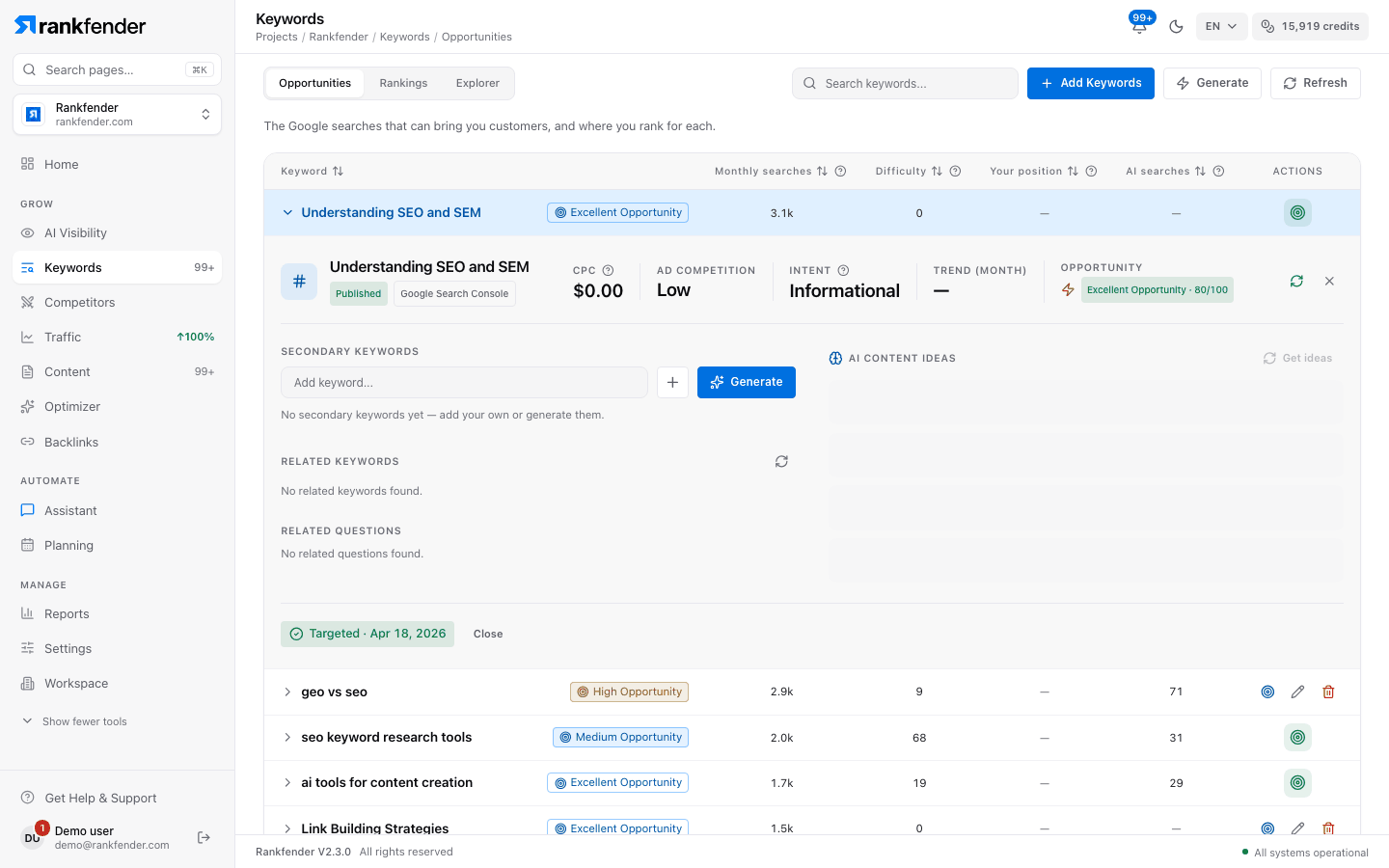
- Status and source: Opportunity, Targeted, Content Ready or Published, and where the keyword came from (AI Generated, Manual, Google Search Console).
- Numbers: CPC, Ad competition, Intent, Trend (month) and Opportunity with its score out of 100.
- "Refresh metrics for this keyword" (circular arrow) measures this one search again.
- "Google Search Console · 28 days": clicks, impressions, CTR and average position, when Google has data for it.
- Secondary keywords: add your own or press Generate. They go into the article when you target the keyword.
- Related keywords and Related questions: real searches close to this one. "Add as secondary keyword" adds one.
- AI content ideas: "Get ideas" or "New ideas" suggests article titles. Generate on an idea creates the article and opens Content › Writer.
Get more keywords
Press Generate
At the top of the page. Only Admins see it.Wait for the four steps
The run adds up to 30 new searches, never one you already have or removed, and never more than your plan has room for.Review the new rows
Target the ones you want, delete the ones you don't.
Refresh the numbers
Refresh measures every keyword in the list again. Essential can refresh once a week, Professional once a day, Business and Agencies at any time; when it isn't available yet, the button is greyed out and its tooltip says why. The refresh icon in a keyword's panel measures one search at any time.
Note
Picking, refreshing, related searches and content ideas use credits. See Monthly credits.