Site Health overview
The SEO, GEO and AEO site audit: the Site Health score, how many pages each plan audits, and how to run an audit.
Site Health is the Optimizer page of the app. It audits your website for what stops Google search, AI answers and answer boxes from reading it, gives one Site Health score out of 100, explains every issue in plain words with how to fix it, and keeps every audit so you can see what improved.
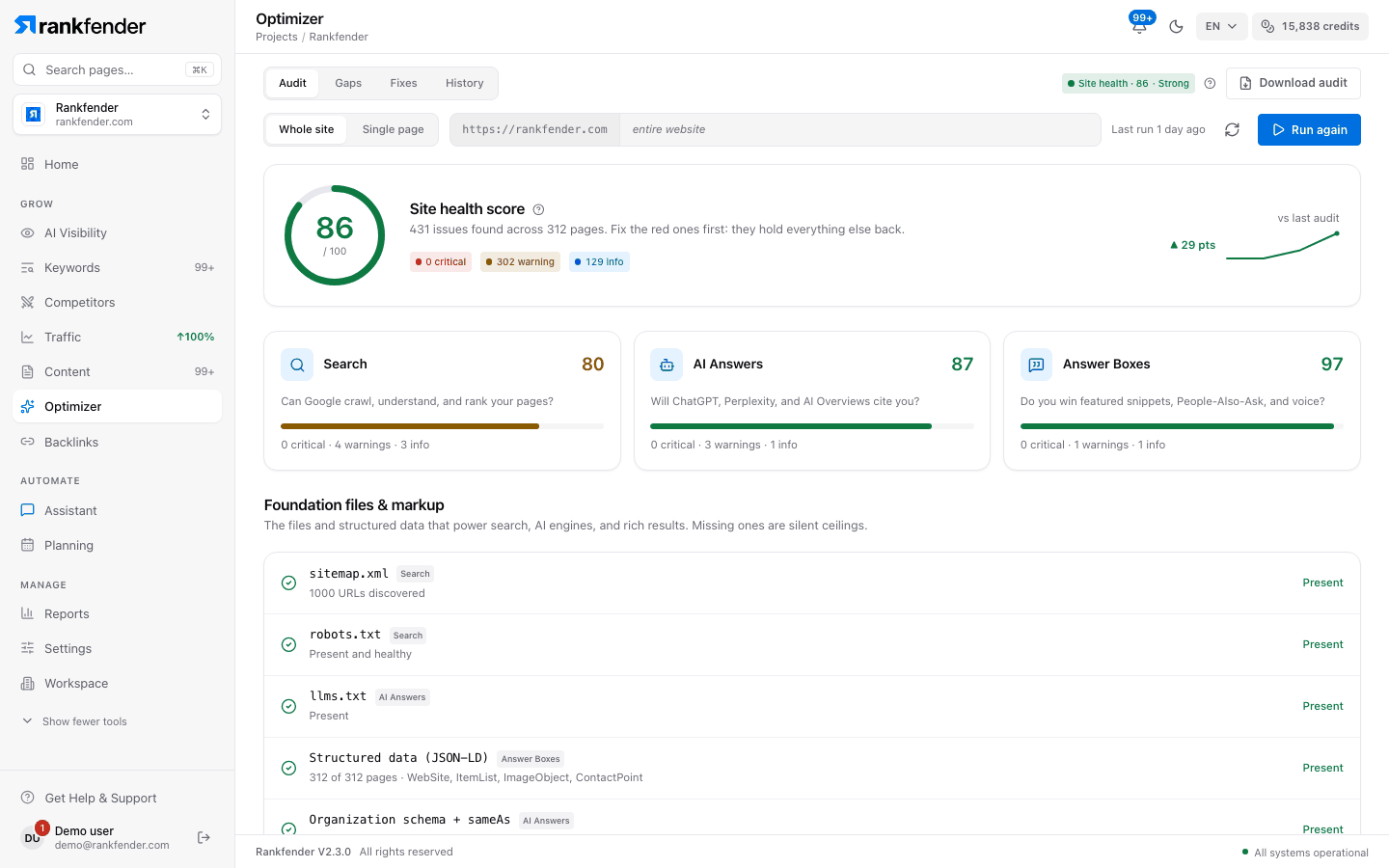
The four tabs
| Tab | What it is for |
|---|---|
| "Audit" | Run the audit and read the result: score, the three pillars, foundation files, every check. Audit |
| "Gaps" | The same findings in three cards, one per pillar, to see where you are weakest. Gaps |
| "Fixes" | Every issue as a ranked action you can add to your Planning tasks. Fixes |
| "History" | Every audit you ran, its score, and what changed since the one before. History |
Three pillars
Every check belongs to one pillar. The app names them in English:
| Pillar | The question it answers | Weight in the score |
|---|---|---|
| "Search" (SEO) | Can Google crawl, understand and rank your pages? | 45 % |
| "AI Answers" (GEO) | Can AI assistants reach your site, trust it and quote it? | 35 % |
| "Answer Boxes" (AEO) | Do your pages offer questions and short answers that featured snippets can use? | 20 % |
The full list is on Every check explained: about 60 checks, from titles and canonicals to AI-crawler access in robots.txt, llms.txt and schema for 8 types.
How the score is worked out
- One issue per check. An issue found on 40 pages counts once. Its weight grows with the share of audited pages it affects.
- Weights. An issue on every page removes 22 points ("Critical"), 7 ("Warning") or 1.5 ("Info") from its pillar. On one page out of many it still removes about a third of that.
- Pillar score = 100 minus the weights of its issues, never below 0.
- Site Health score = Search × 45 % + AI Answers × 35 % + Answer Boxes × 20 %. It always sits between the three pillar scores.
- Cap at 20. When your homepage is set to noindex, or robots.txt blocks the whole site, the score cannot go above 20: nothing else matters until that is fixed.
| Score | Label in the app |
|---|---|
| 85 to 100 | "Strong" |
| 60 to 84 | "Needs work" |
| 0 to 59 | "At risk" |
The same number appears as "Site health" on Home. Only a whole-site audit updates it; a single-page audit shows "This page's score" and leaves the site score as it was.
Pages per audit
Every plan includes the site audit. The plan sets how many pages one whole-site audit reads:
| Plan | Pages per whole-site audit |
|---|---|
| Essential | 10 |
| Professional | 50 |
| Business | 500 |
| Agencies | 500 |
| Pay as you go | 10 |
When an audit stops at the limit, History marks it "plan page limit reached", and the checks that need the whole site (orphan and unreachable pages) stay silent rather than guess.
Where to start
Run the first audit
Open Optimizer, keep "Whole site" and click "Run site audit". It takes about 3 minutes on a small site.
Open "Fixes"
Start with the "Critical" items. Click "Add to tasks" on the ones you will do.
Make the changes on your site
Each fix says why it matters and how to do it, often with an example to copy.
Run the audit again
"Since your audit of …" lists what is fixed and what is new. Planning tasks whose issue is gone everywhere are marked done.
Rankfender does not change your site
The audit only reads your pages. Every fix is a change you or your developer make on your site or in your CMS. Then run the audit again: History shows what is now fixed, page by page.
Limits worth knowing
The audit reads the HTML your server sends and does not run JavaScript, so text or links added by scripts after the page loads are not seen. Core Web Vitals (real-visitor speed) are checked only for sites connected to Google Search Console that have enough Chrome visitors to be measured.